Publish
Publish
Authors
Description
A tour on how to duplicate a template from Bullet gallery and publish it as your webpage.
Slug
using-a-template
Bullet has a wide range of templates for you to choose from, whether you need a directory, knowledge base, e-commerce store, blog etc.
Step 1: Duplicating the template
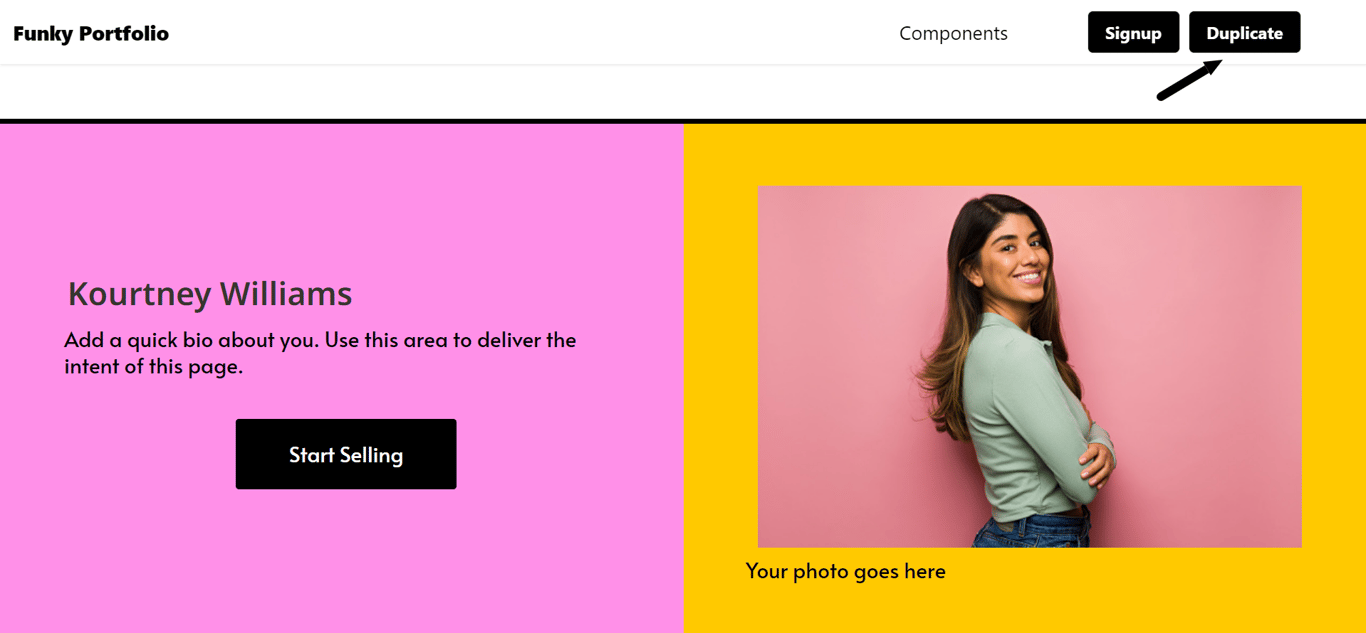
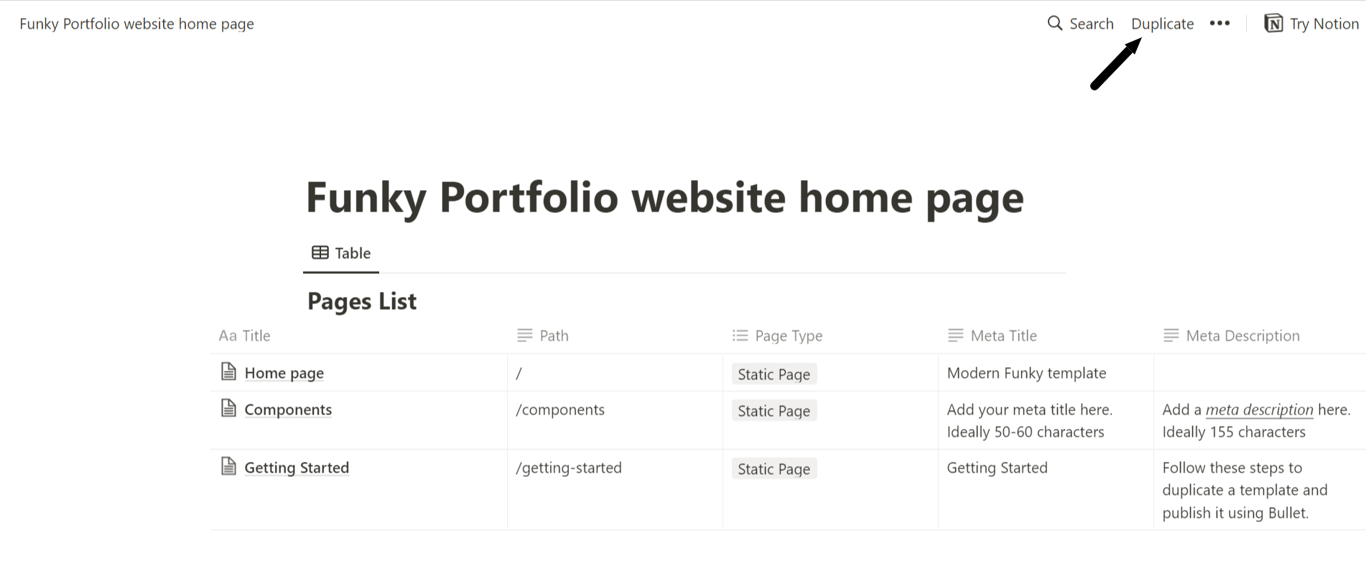
- Click Duplicate from the top right corner of the template
- Then, click Duplicate on the top right corner of the Notion page
- Choose a workspace or login to Notion for duplication
- Once the template is available inside your Notion workspace, start customizing it.
Step 2: Copying the Notion public URL
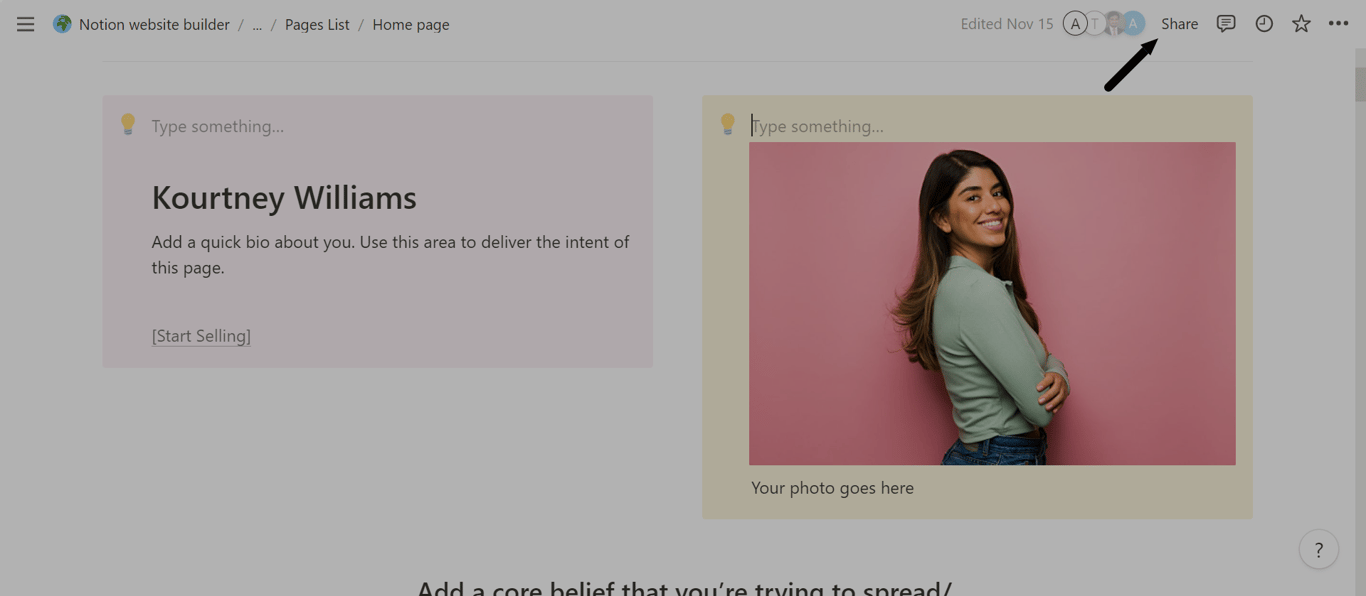
.png/public)
- Click Share on the top right corner of your Notion page
- Toggle the “Share to web” icon
- Paste the URL in the site you’ve created in Bullet and hit Create
Step 3: Adding the code for the theme
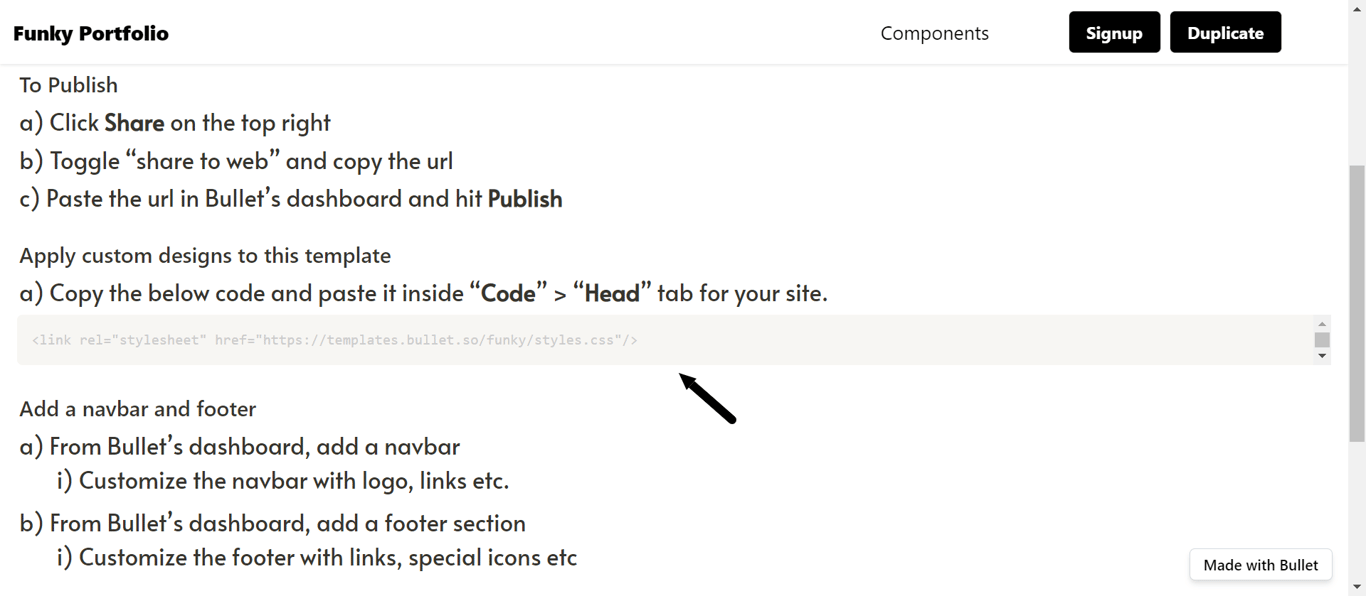
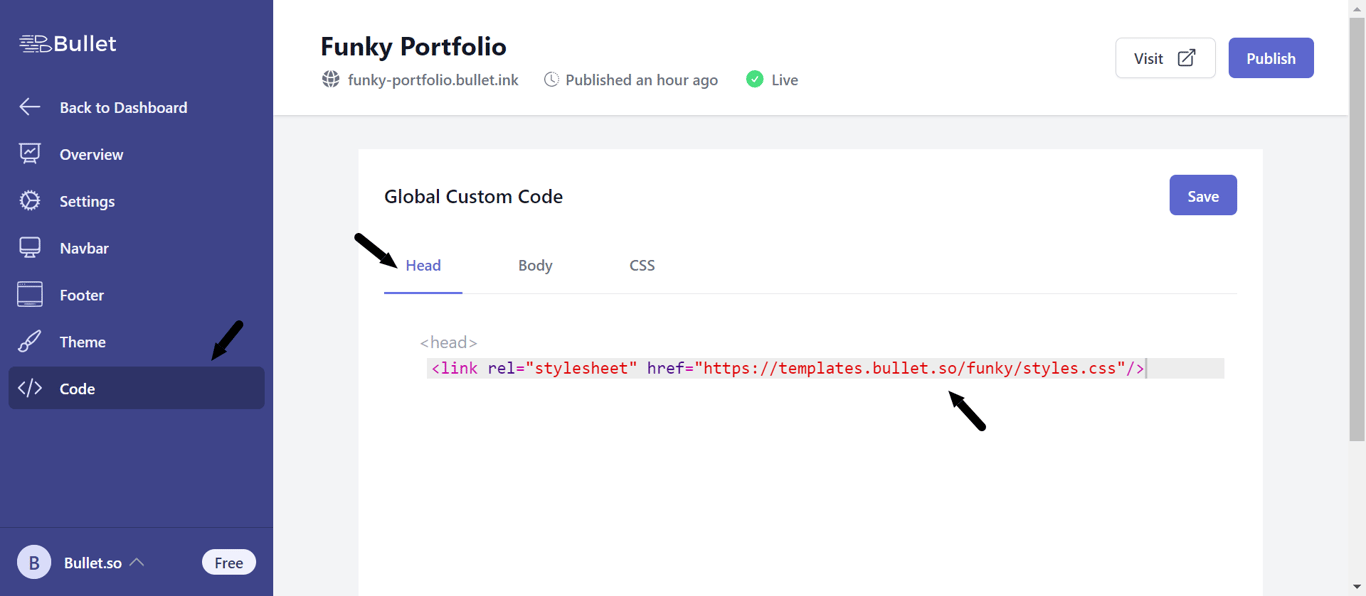
To apply the template’s theme in your website:
- Copy the given code from the “Getting started” page of your template
- Paste it under Code → Head in Bullet sidebar
- Publish your site from the dashboard